This guide shows you how to encrypt a file with a password, then send it to a recipient with Sigalion Vault. The principle is simple and safe: the file and the password travel through two separate channels and never go together.
- Send the password by SMS, directly from the app.
- Send a download link for the file by email.
Before you start, sign in to your account from the Account tab.
Step 1: choose the file to encrypt
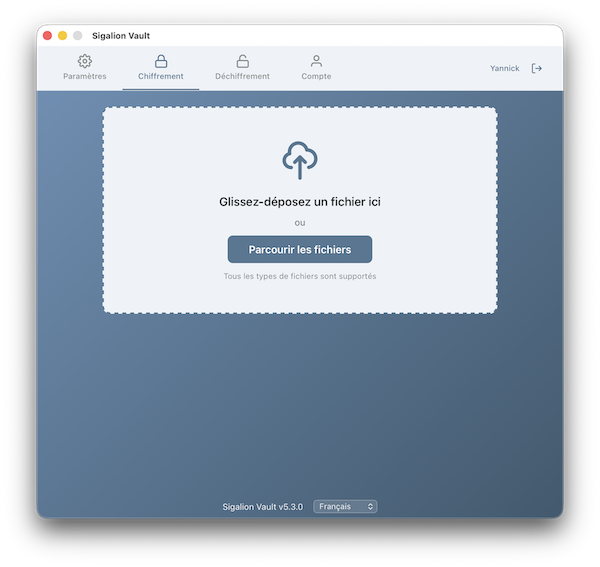
Open the Encryption tab. Drag and drop your file into the drop zone, or click Browse files to select it. All file types are accepted.
Step 2: check the mode and the format
Once the file is chosen, Vault shows a summary: the file name, its location, its size, the encryption mode and the output format.
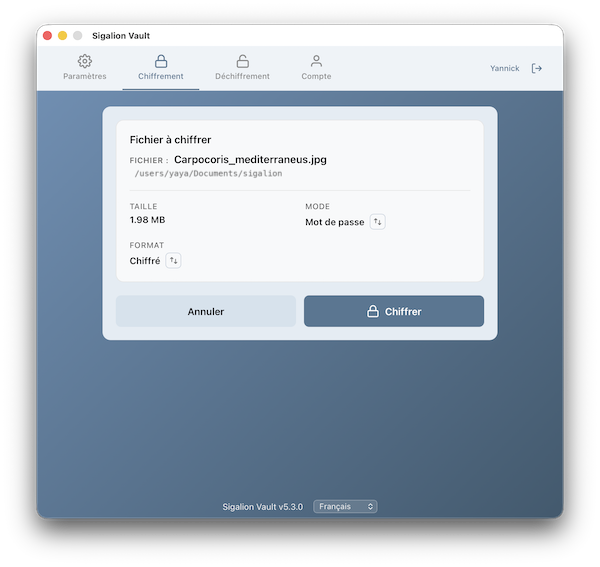
Two settings available in this view determine how the file will be protected:
- Mode: choose Password. Vault then generates a random, strong password for you. The other mode, Certificate, will be covered in a separate guide.
- Format: Encrypted produces a .cry file. Encrypted and timestamped produces an .asics container file that adds a timestamp* proving the date of encryption.
Changing the mode or format for a single file
These two settings have a default value, set in the Settings tab, Cryptography section, which you can change at any time. The small arrow button to the right of each value (Switch mode, Switch format) lets you switch the mode or format for this file only, without changing your default settings.
Step 3: encrypt the file
Click Encrypt. A progress bar keeps you informed of the steps: password generation, key derivation, then encryption. The operation is performed entirely locally on your Mac: your original file is never sent over the internet to be encrypted.
Step 4: retrieve the encrypted file and the password
The encrypted file is saved in the same folder as the original file, with the .cry extension, or .asics if you chose the timestamped format. The Show File button opens the right folder directly in the Finder.
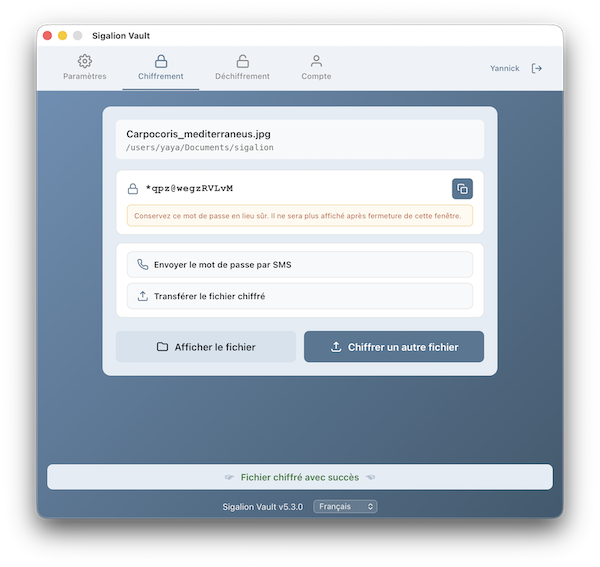
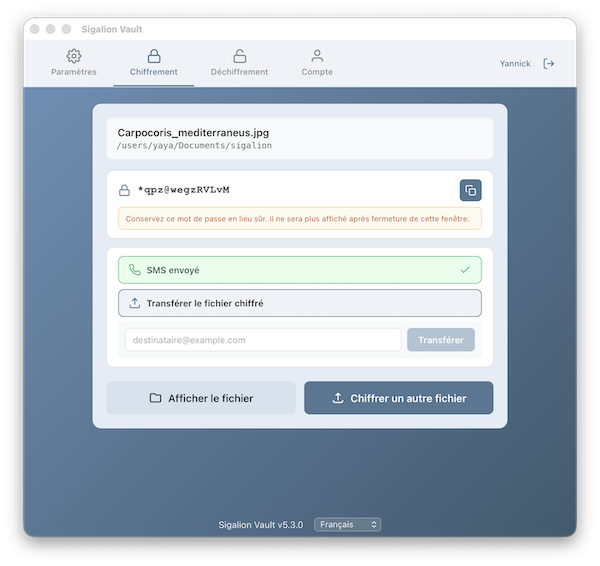
The generated password is shown in a dedicated box:
- Click the copy icon to place it on the clipboard. For your security, the clipboard is automatically cleared after two minutes.
- If needed, keep this password in a safe place: it will no longer be shown once this window is closed.
Step 5: send the file and the password
Never send the file and the password together. To follow this common-sense security rule, Vault offers you two separate channels to send the password and to transfer the encrypted file.
Sending the password (by SMS)
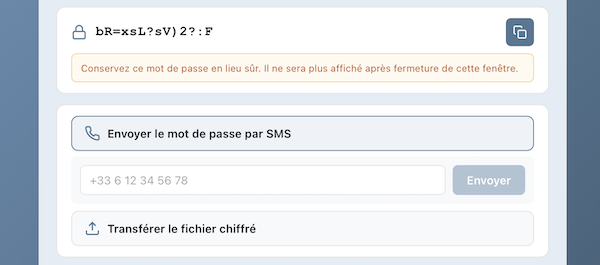
Click Send password by SMS, enter the recipient's phone number, then click Send. A French number starting with 06 or 07 is automatically converted to the international format. Sending uses one SMS credit.
You can also copy the password and send it by another means of your choice, for example during a phone call, as long as it stays separate from the file.
Sending the file (link by email)
Click Transfer encrypted file, enter the recipient's email address, then click Transfer. The encrypted file is uploaded securely to our servers and your recipient receives an email containing a download link. This link expires automatically after a limited time**.
What about the recipient?
Your recipient opens the link received by email, downloads the encrypted file, then decrypts it with the password you sent them. They do not need a license: the free Vault is enough to decrypt a password-protected file.
* The timestamp type, Sigalion or qualified eIDAS, is chosen in the Settings tab, Cryptography section, and applies to all your timestamped files. The qualified eIDAS timestamp uses one timestamp credit. The Sigalion timestamp is free.
** By default the download link stays available for 48 hours and you can have 3 files in transfer at the same time, each up to 5 MB. With a Giga plan (monthly or yearly) the link stays available for 7 days and you can have 50 simultaneous files of 100 MB each, within a limit of 1 GB of total storage. A status of transferred files is available in the Account tab. There you also find your balance of SMS and timestamp (qualified eIDAS) credits.