This guide walks you through every step, from buying your license to your first sign-in to Sigalion Vault on macOS. You will need a valid email address: it is where you will receive your license code, then the link to activate your account.
Step 1: buy your license
Go to the Sigalion Vault purchase page, accessible from the site's Applications menu.
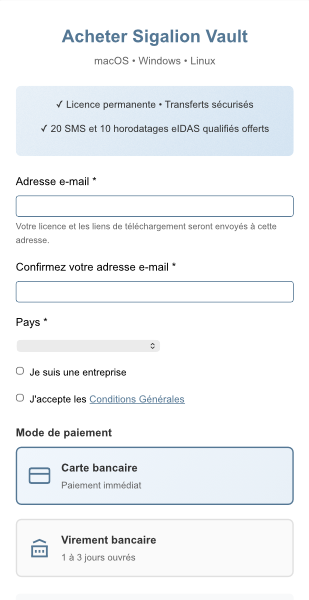
Fill in the form:
- Your email address, then its confirmation. Use an address you actually check.
- Your country (France, European Union or outside the EU), which determines the VAT applied.
- If you are buying as a business, tick the dedicated box and enter your company name, as well as the intra-community VAT number for the EU outside France (checked automatically).
- Accept the terms and conditions.
- Choose your payment method: credit card or bank transfer.
Then click the payment button: you are redirected to the secure payment page.
Card or transfer?
- Credit card: immediate payment, your license code is displayed straight away.
- Bank transfer: your license code will only be sent once the transfer has been received (allow for the usual banking delay).
For a bank transfer, it is made to Mollie, the payment provider (beneficiary “Stichting Mollie Payments”). The page shows the IBAN, the BIC, the amount and a payment reference: you must include this reference in the description of your transfer, otherwise the payment cannot be matched to your order.
Step 2: retrieve your license code and download Vault
After a card payment, the confirmation page displays your license code, with a button to copy it. The same code is also sent to you by email.
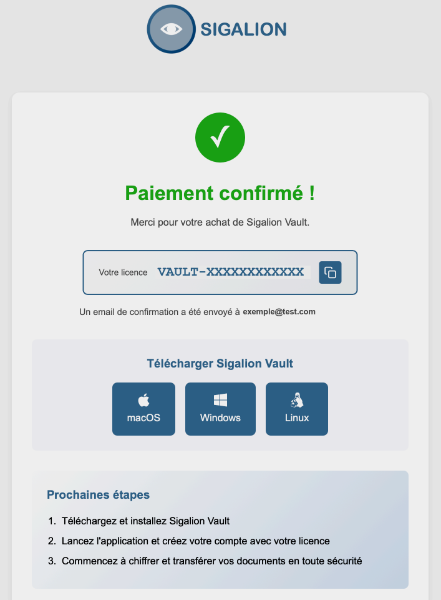
Your code has the form VAULT-XXXXXXXXXXXX (the VAULT- prefix followed by twelve characters). Keep it safe: you will be asked for it to create your account.
From the confirmation page, click the macOS download button to get the SigalionVault.dmg file. Download links are also available in the email you were sent.
Step 3: install Vault and create your account
Open the downloaded SigalionVault.dmg file, then drag the Sigalion Vault icon into the Applications folder. Then launch the application from the Applications folder. The application is signed and notarized by Apple: on first launch, macOS may ask for a simple confirmation, in which case click Open.
The application is available in seven languages*: you can change it at any time from the menu at the bottom of the window.
On first start, choose Create an account, then fill in the form.
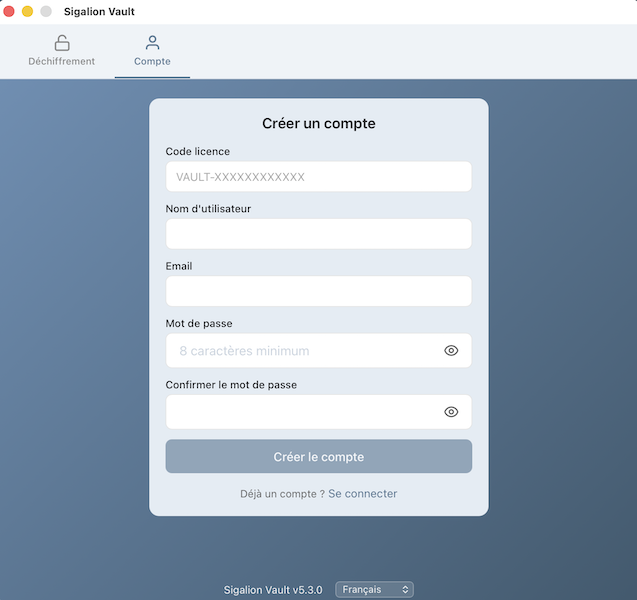
- License code: enter your VAULT-XXXXXXXXXXXX code.
- Username: it must be at least 5 characters long.
- Email: your email address (it will receive the activation link and can only be used for a single account).
- Password: it must be at least 8 characters long.
- Confirm password: re-enter the same password.
Click Create account. A message then confirms: “Account created! Check your email.”
Open the email sent by Sigalion and click the activation link. Your account is then activated and your email address verified. The activation link is valid for 72 hours.
Step 4: sign in
Back in the application, choose Sign in and identify yourself with your email and your password.
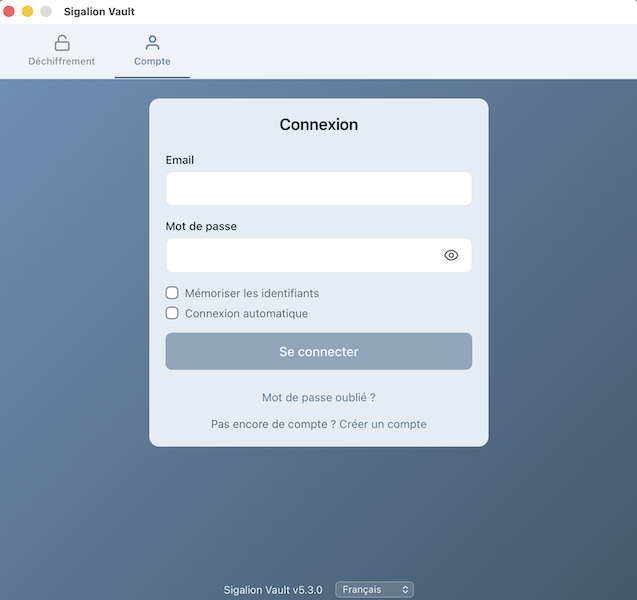
Note: you sign in with your email address, not with your username.
Two options make your future sign-ins easier:
- Remember credentials: pre-fills your email and password, saved securely in the macOS Keychain.
- Automatic login: opens your session when the application starts.
Your account is ready. You have 20 SMS and 10 qualified eIDAS timestamps to get started.
It is cross-platform: a single account lets you sign in with the same credentials on Sigalion Vault for Windows, Linux, iOS and Android.
* Available languages: French, English, German, Spanish, Italian, Dutch, Portuguese.